A LITTLE HELP

Link notes to Google Calendar events.

Sync Google Calendar events, link the notes you need, and keep tasks in the same workspace.

All help topics

Choose a topic to jump right in.

Adding plans to your calendar

Choose a date or select New event, then add a title and time. Use all-day events for plans without a time and recurring events for regular appointments.

  1. Switch between month, week, day and year views.
  2. Choose event colors and drag regular events to another date.
  3. Repeat daily, weekly, monthly, on the last day of the month, or yearly, with an optional end date.
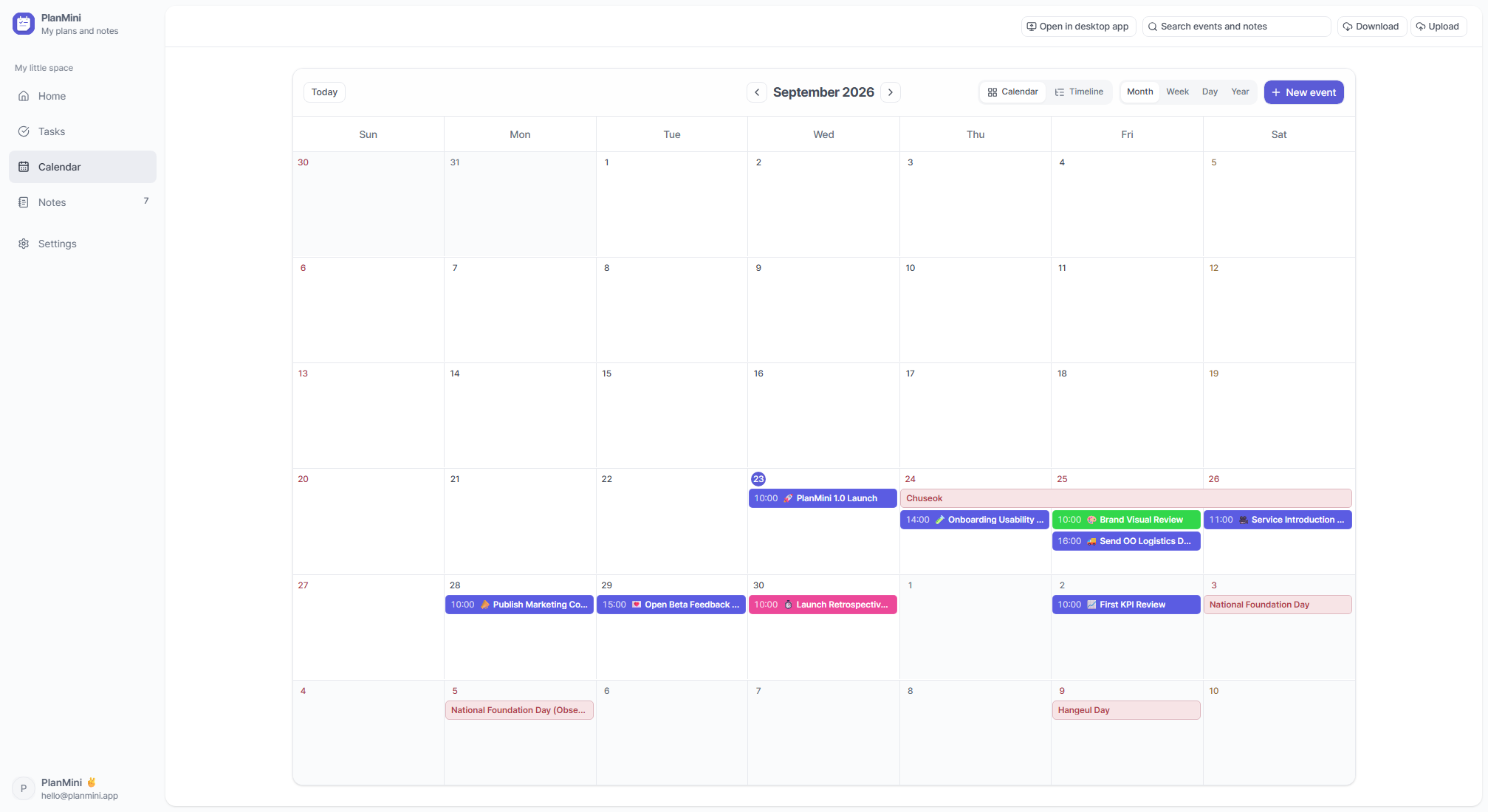
Monthly calendar with color-coded events

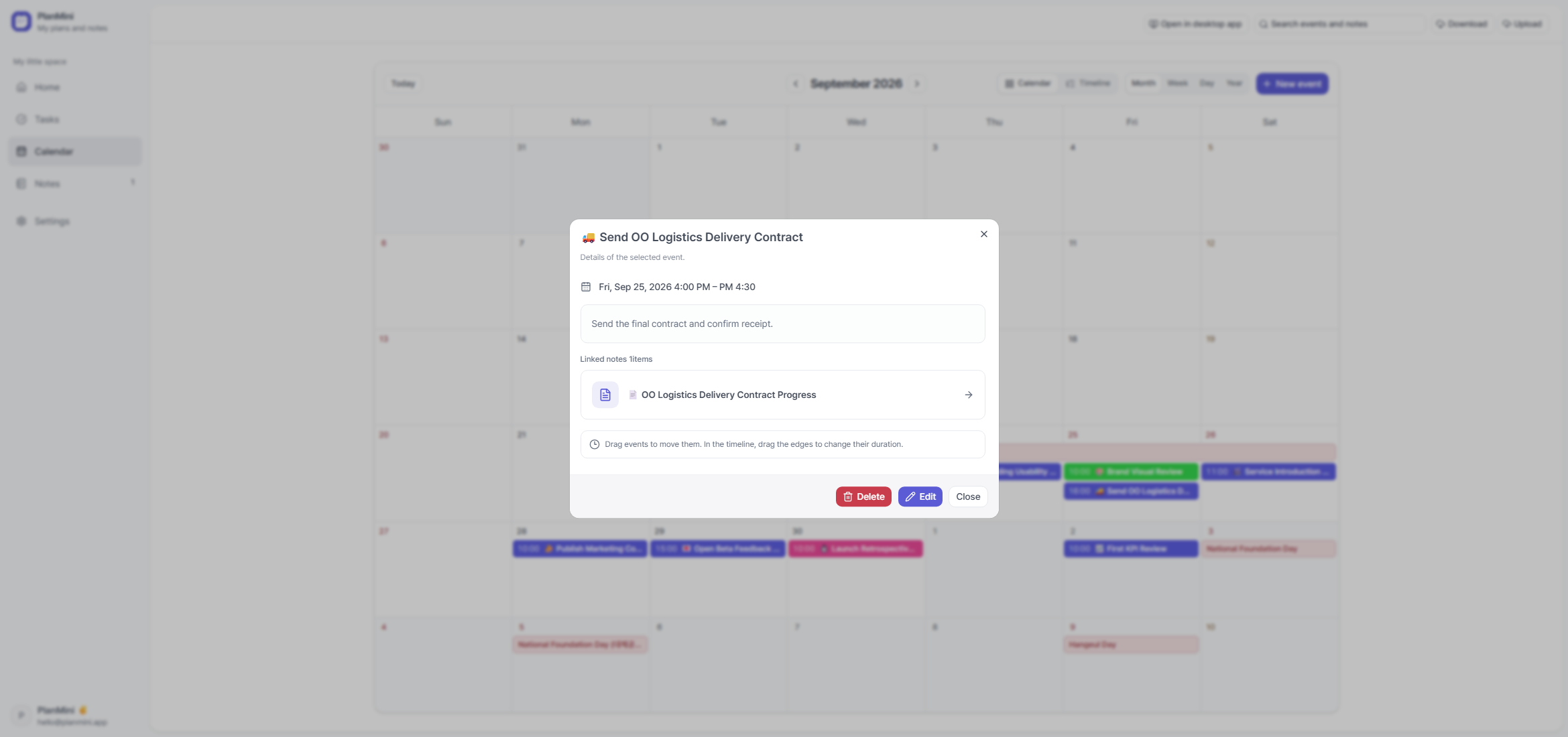
Connecting a note to an event

Attach meeting notes to a meeting, or preparation notes to a delivery. Open the details directly from the event.

  1. Edit the note, enable calendar linking, and save it.
  2. Create or edit an event and open Linked notes.
  3. Find your note using search or favorites, select it, and save the event.
  4. You can link multiple notes to an event. If a linked note is in Trash, follow the restore prompt.
An event with a shortcut to its linked note

Checking your sync status

Look for Sync complete at the top of the app. Events sync with Google Calendar; notes, tasks and attachments sync with Google Drive.

  1. The web app cannot sync automatically while the browser is closed or Google access has expired.
  2. Reconnect Google to resume syncing pending changes.
  3. If a note was edited on multiple devices and a conflict appears, compare both versions and choose the one to keep.

Feedback and suggestions

Share an idea, feature request, or bug you found while using PlanMini.

Used only to reply or let you know when your suggestion is released.

Only this nickname can be made public; your email is never shown.

If your suggestion is released, we may credit it as ‘Special thanks to nickname.’

For bugs, include the steps and platform you were using. (Up to 4,000 characters)